
Why you may receive a delivery notification
When a campaign is underperforming or at risk, waiting to spot the issue in the interface can result in unspent budget or missed delivery. Delivery notifications are designed to alert you proactively, so you can take action before the situation worsens.
Emails are sent as a Daily Digest: if multiple campaigns require your attention on a given day, you will receive a single email grouping all alerts together.
Who receives these emails
You will receive delivery notifications if you have published a line item on the campaign in question. If several users have published line items on the same campaign, each of them may receive the alert independently.
These notifications are only active for agencies enabled by the Displayce team. If you believe your agency should be receiving alerts but is not, contact your Displayce point of contact.
What triggers a notification
There are 4 trigger cases. The first three combine a signal from the Delivery Pilot with the campaign's Trend status. The fourth is based on campaign end date and budget.
| Condition | What to check |
| Deals have an allocated budget but no creatives assigned — Trend: Action Needed or Delayed | Assign creatives to the relevant deals |
| Loss reason is CPM too low — Trend: Action Needed | Increase your CPM bid |
| Some impressions are not covered by creatives — Trend: Action Needed or Delayed | Review and complete creative coverage |
| Campaign end date reached with remaining unspent budget (> €500 and < 10% of total budget) | Review your line items dates and consider updating the end date to extend the campaign |
How to manage your notification preferences
You have two levels of control over the emails you receive.
Opt out of all delivery notifications
Go to your Notification Settings page and disable delivery emails globally. This will stop all delivery notification emails across all your campaigns.
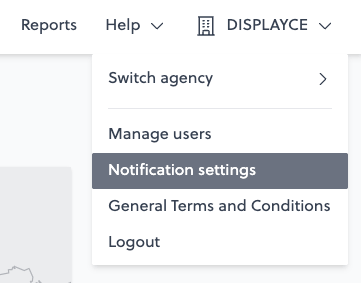
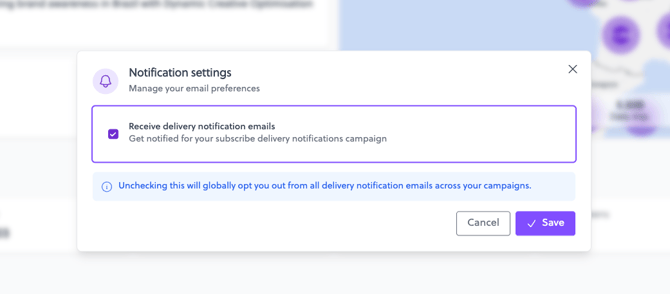
Note that this does not remove your campaign-level subscriptions — if you re-enable notifications later, you will resume receiving alerts for those campaigns.
Manage notifications for a specific campaign
Open the Campaign Summary, click the ⚙️ menu, and select Notifications. From there you can:
- View the list of email addresses currently subscribed to this campaign
- Add an email address
- Remove an email address
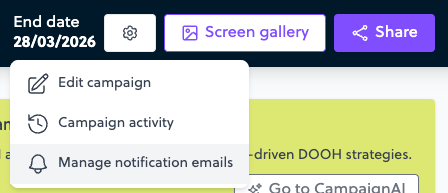
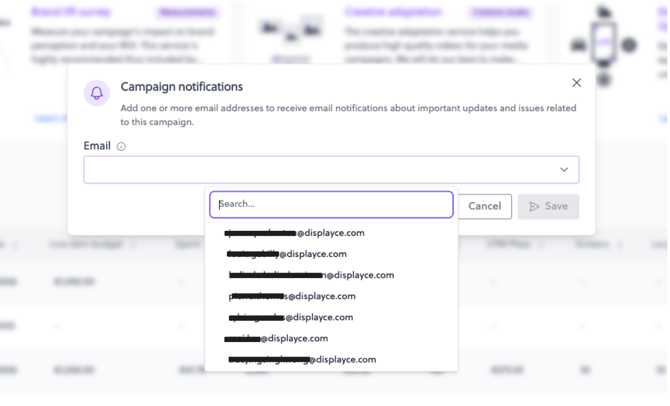
Changes take effect from the next daily digest.
Delegating campaign monitoring: if a user is going on leave or wants a colleague to keep an eye on a campaign, the colleague's email address can be added manually to the recipient list from the Campaign Summary → ⚙️ → Manage notification emails. No need for the colleague to have published a line item. This is a lightweight way to hand off campaign monitoring without any account or permission changes.
FAQ
Why don't I see delivery notifications?
Delivery notifications are enabled at the organization level.
If you don’t see the option in your settings, your agency may not be eligible.
Please contact your Displayce point of contact for more information.
I'm listed as a recipient on a campaign but I'm not receiving any emails. Why?
Check your Notification Settings — you may have disabled delivery notifications globally. If that is the case, your campaign subscriptions are still saved but no emails will be sent until you re-enable notifications.
I want to stop receiving emails for one specific campaign only. How do I do it?
Open the Campaign Summary, click the ⚙️ menu, and select Notifications. Remove your email address from the recipient list. This will only affect that campaign — your other subscriptions remain unchanged.